Desktop app
The desktop app is CodArch in a native window (Electron). It analyses with the same engine as the CLI, so the snapshot has the same checksum, but it does so against the real disk and with git: the snapshot carries churn and there are no browser limits.
Install
Section titled “Install”Download your system’s installer from the repository Releases:
| System | File | What it does |
|---|---|---|
| Windows | codarch-<version>-setup.exe (NSIS) | per-user install in %LOCALAPPDATA%\Programs\CodArch, no administrator needed |
| Linux | codarch-<version>-amd64.deb | installs the app system-wide, with its menu entry |
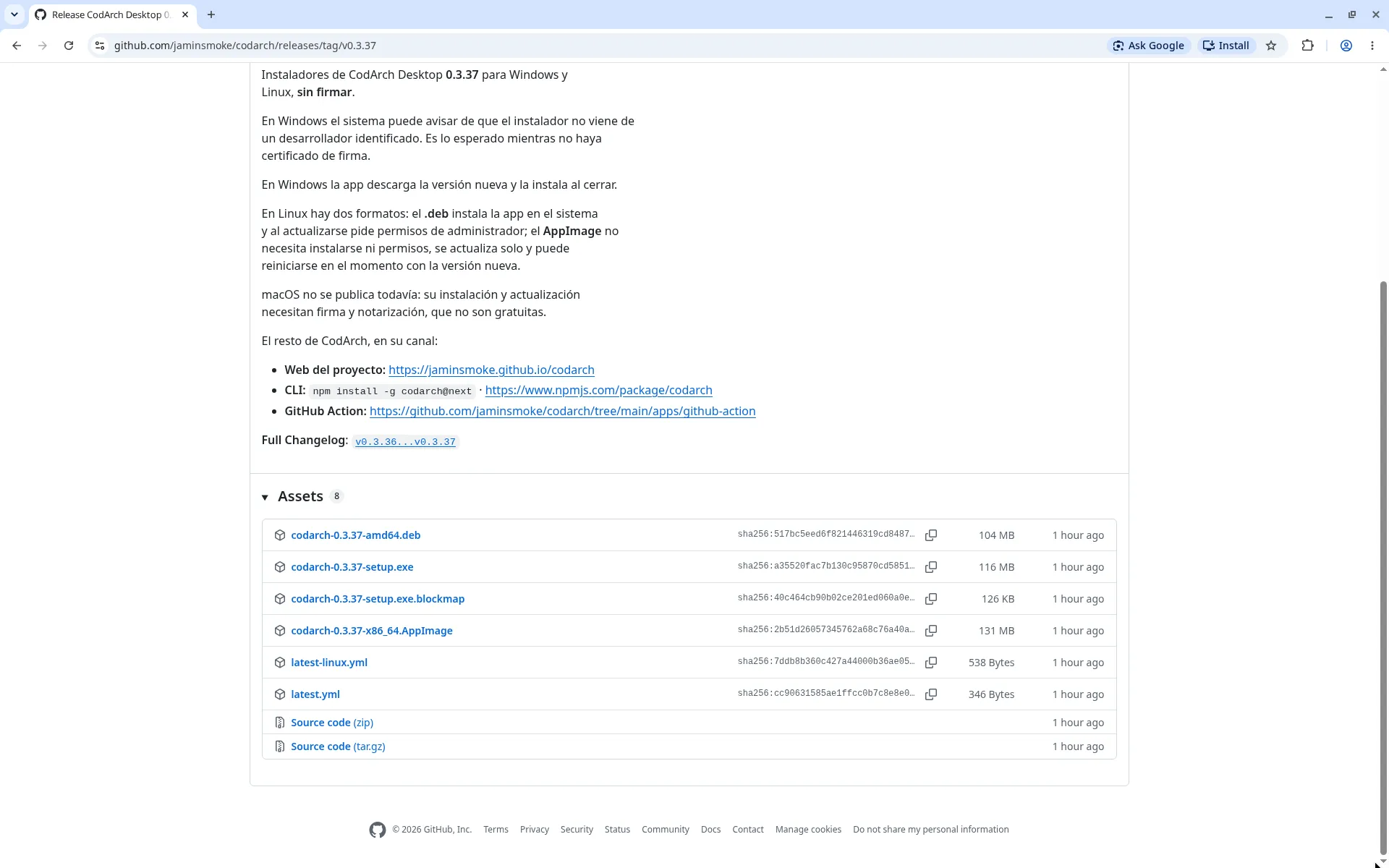
| Linux | codarch-<version>-x86_64.AppImage | runs without installing anything (chmod +x and open) |
macOS is not published: without signing or notarisation, Gatekeeper blocks the app. The installers are unsigned; see the FAQ.
The window
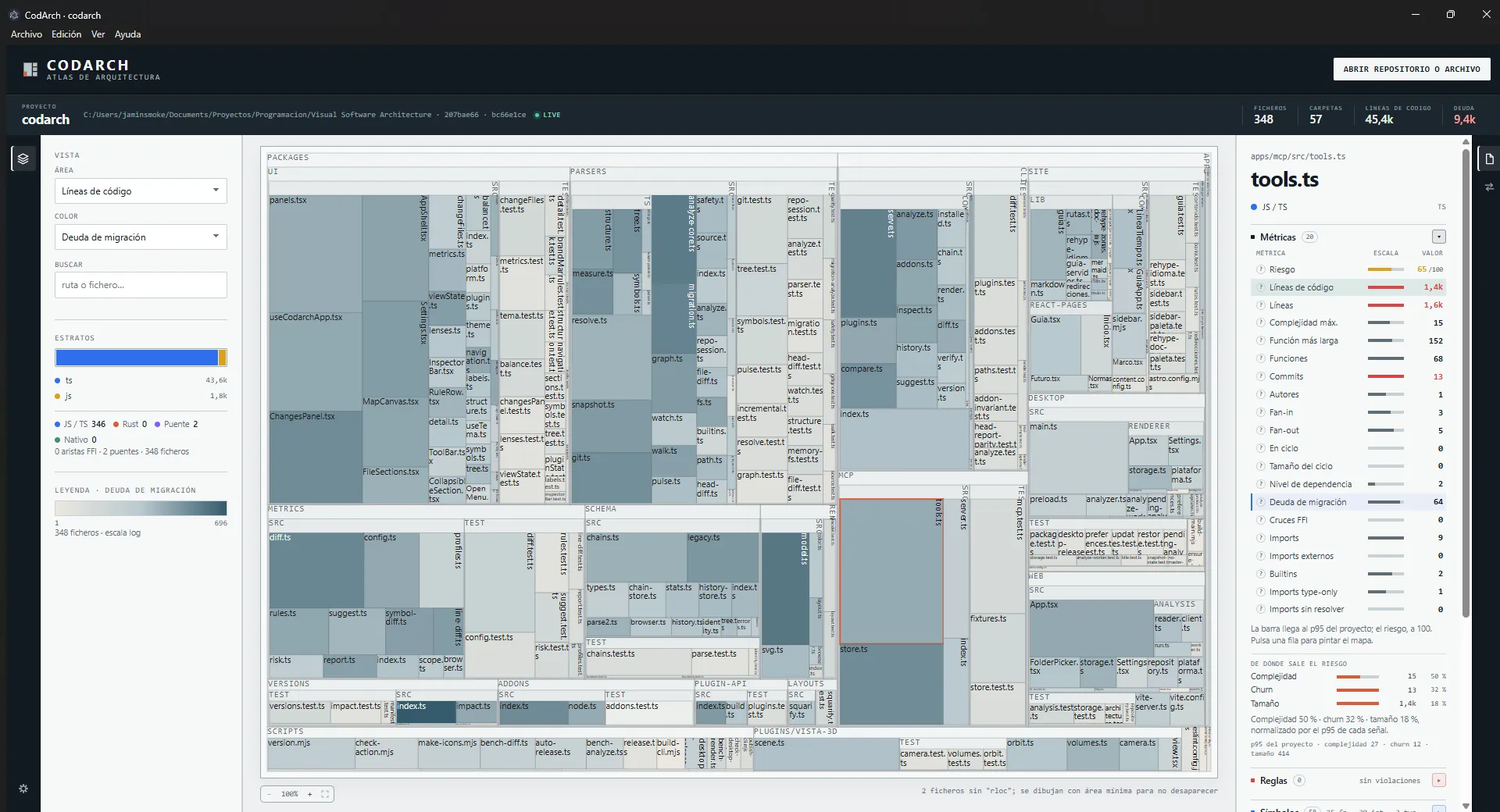
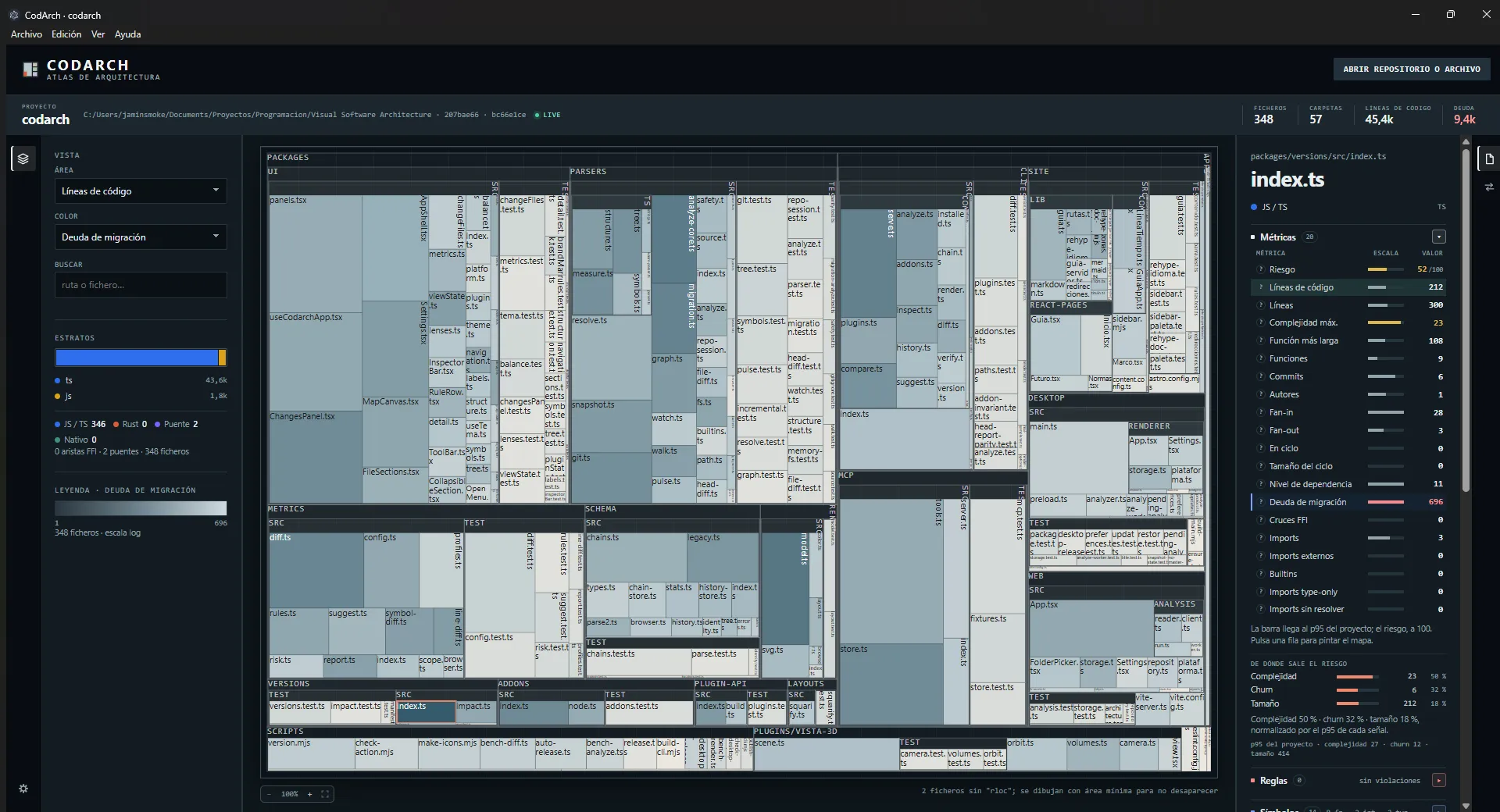
Section titled “The window”The window shows the same interface as the web app: the VISTA panel, the map and the inspector. The interface is in Spanish; this page uses the names as they appear on screen.
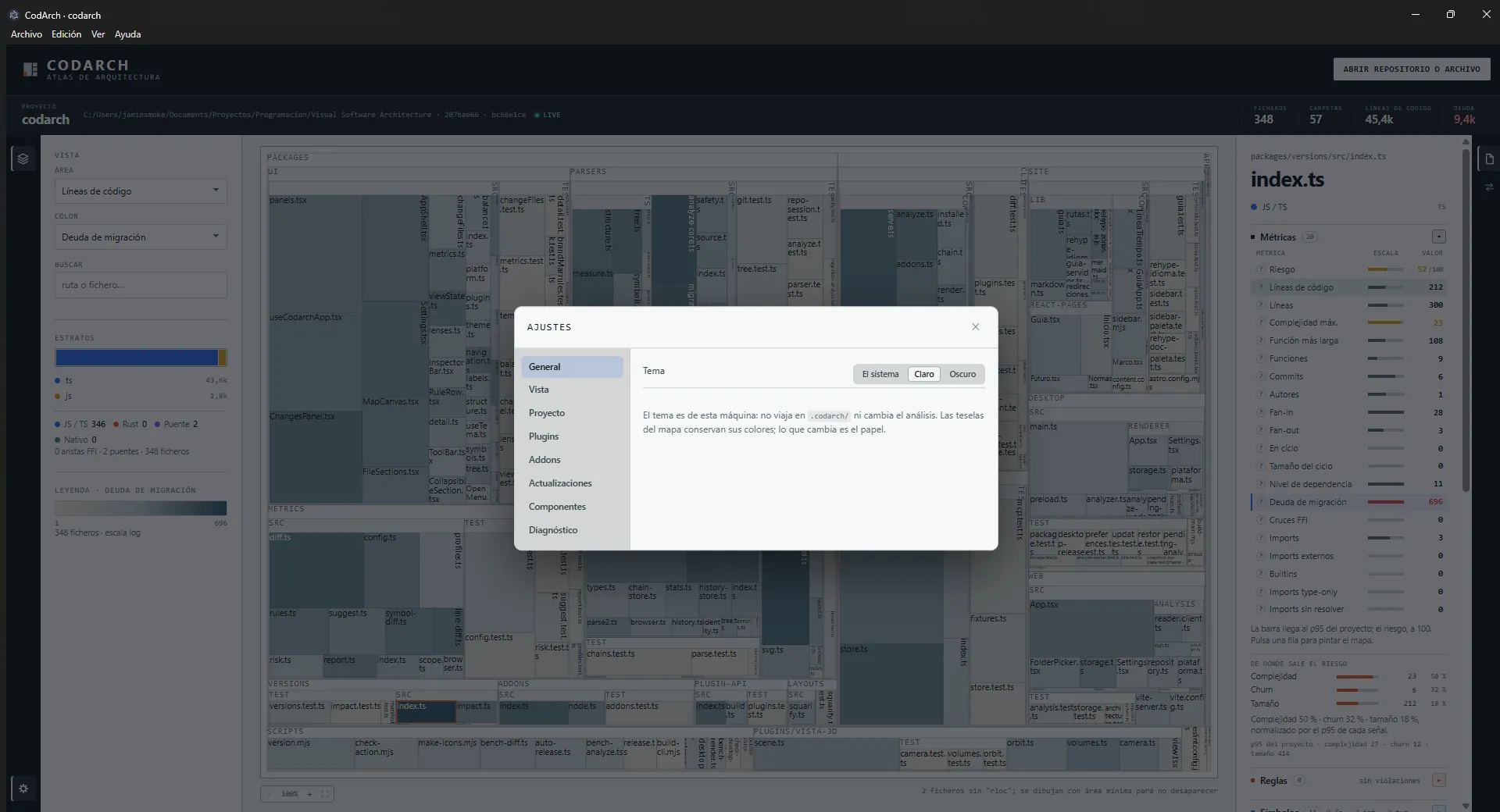
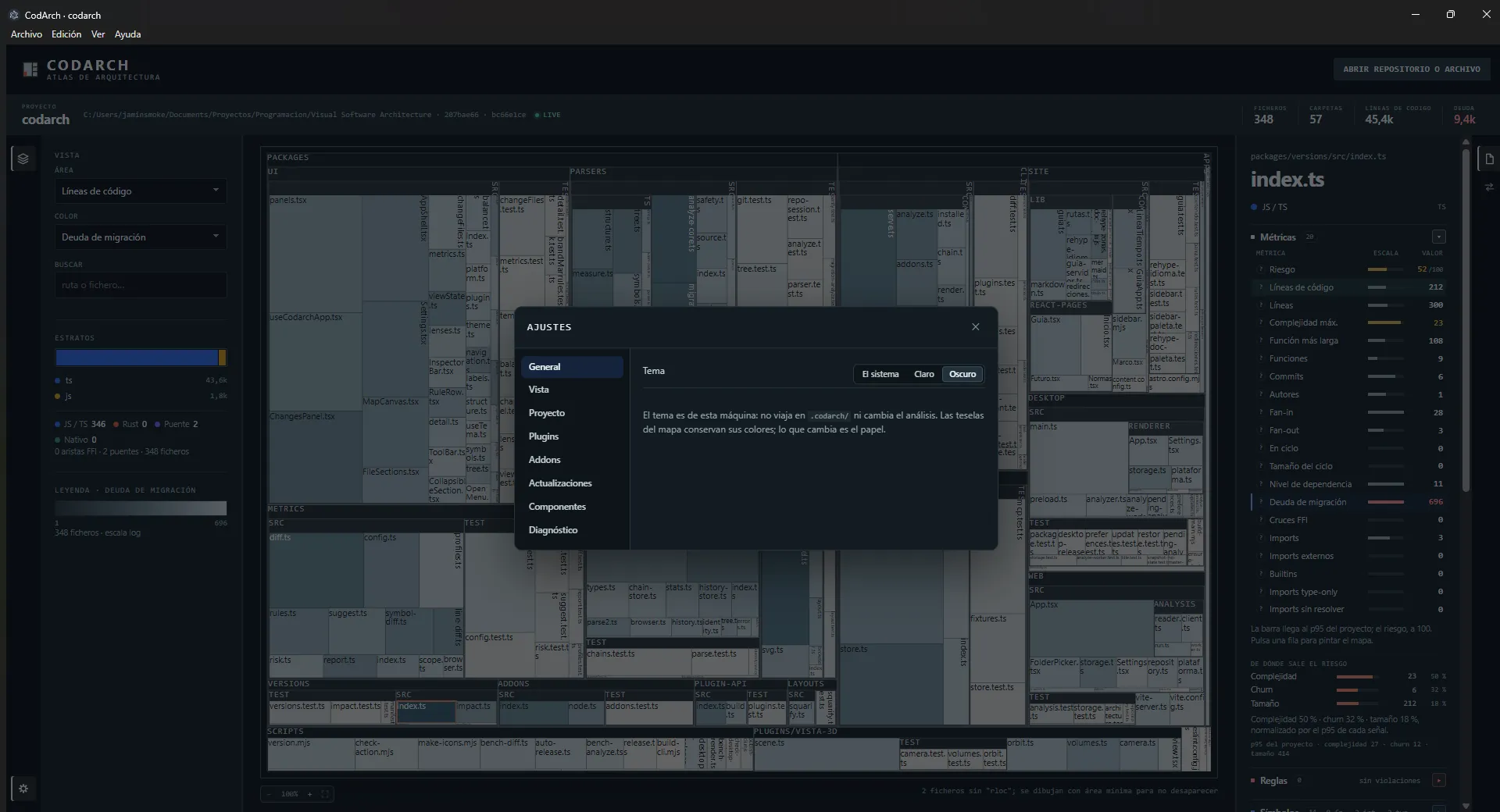
The theme is picked in Ajustes › General, the same as in the web app: light or dark paper belongs to the machine and the map’s tiles keep their colour.
Archivo, Edición, Ver and Ayuda menus
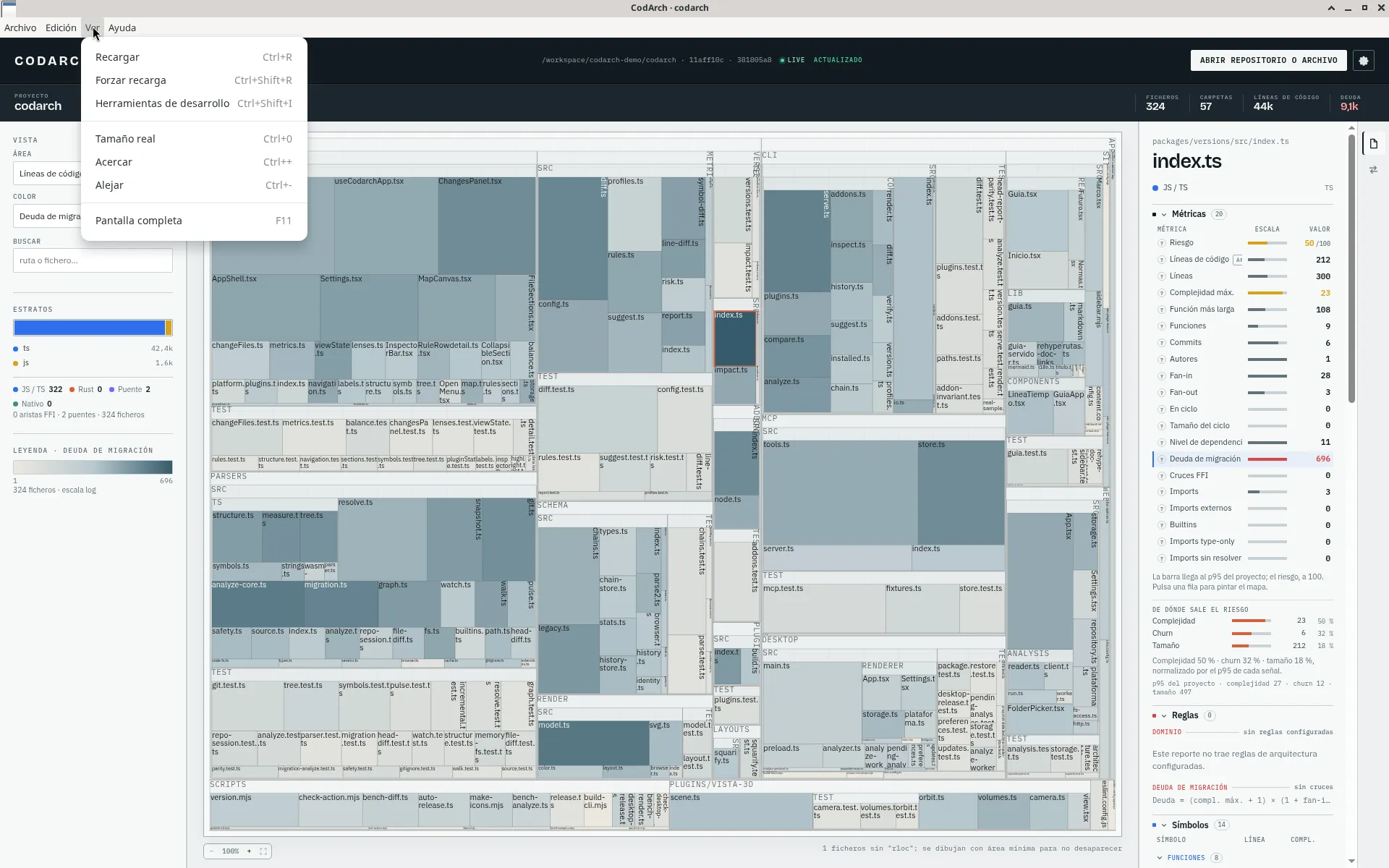
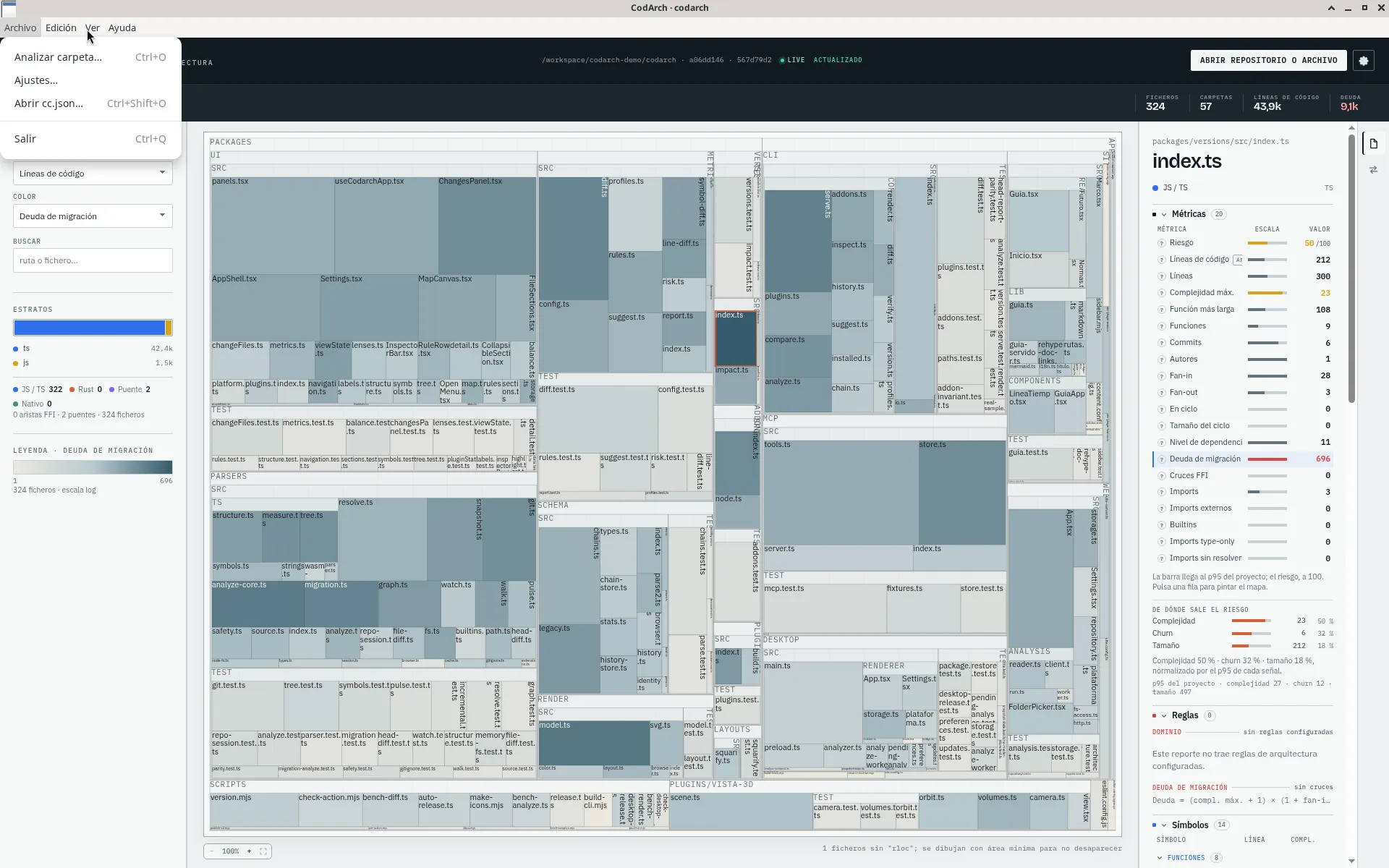
Section titled “Archivo, Edición, Ver and Ayuda menus”On top of the interface, the app has native menus: Archivo (file), Edición (edit), Ver (view) and Ayuda (help).
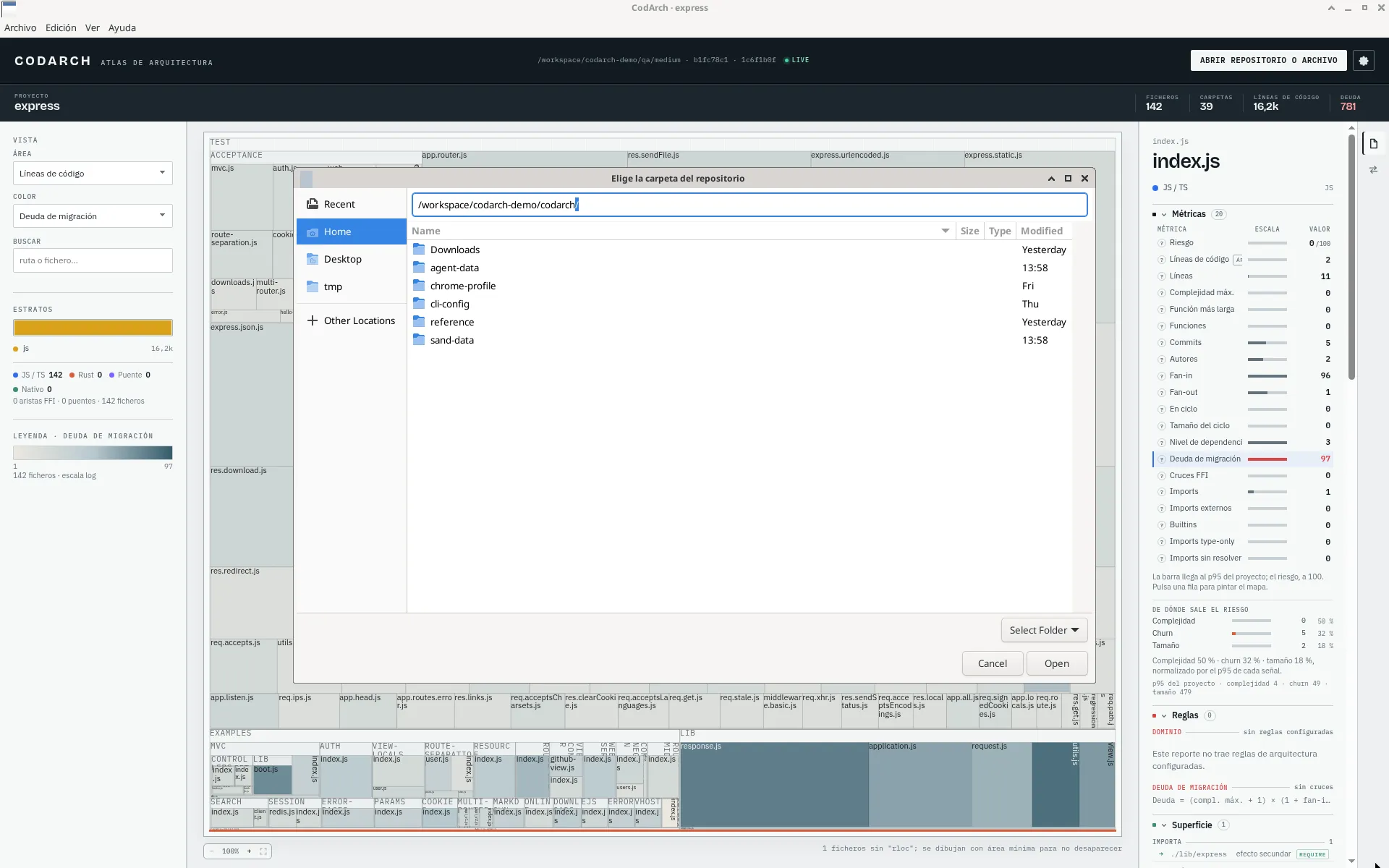
Elige la carpeta del repositorio
Section titled “Elige la carpeta del repositorio”There are three ways to open a repo, from most to least common:
- ABRIR REPOSITORIO O ARCHIVO: the header button opens a drop-down with Analizar carpeta… (analyse folder), Archivo cc.json… (cc.json file) and Reporte JSON… (JSON report). It is the main way and works the same as in the web app. Analizar carpeta… opens the native Elige la carpeta del repositorio (choose the repository folder) dialog. The Archivo menu has the same actions.
- Shortcuts:
Ctrl+Oanalyses a folder,Ctrl+Shift+Oopens a JSON. - A path on start: the app accepts a folder, a
cc.jsonor areport.jsonas an argument and opens it right after starting. The installers do not register file associations, so the app does not show up in «Open with» on its own: pick it by hand in that file-explorer menu or pass it the path from a terminal (/opt/CodArch/codarch /path/to/repowith the.deb,./codarch-<version>-x86_64.AppImage /path/to/repowith the AppImage).
The .codarch/ folder
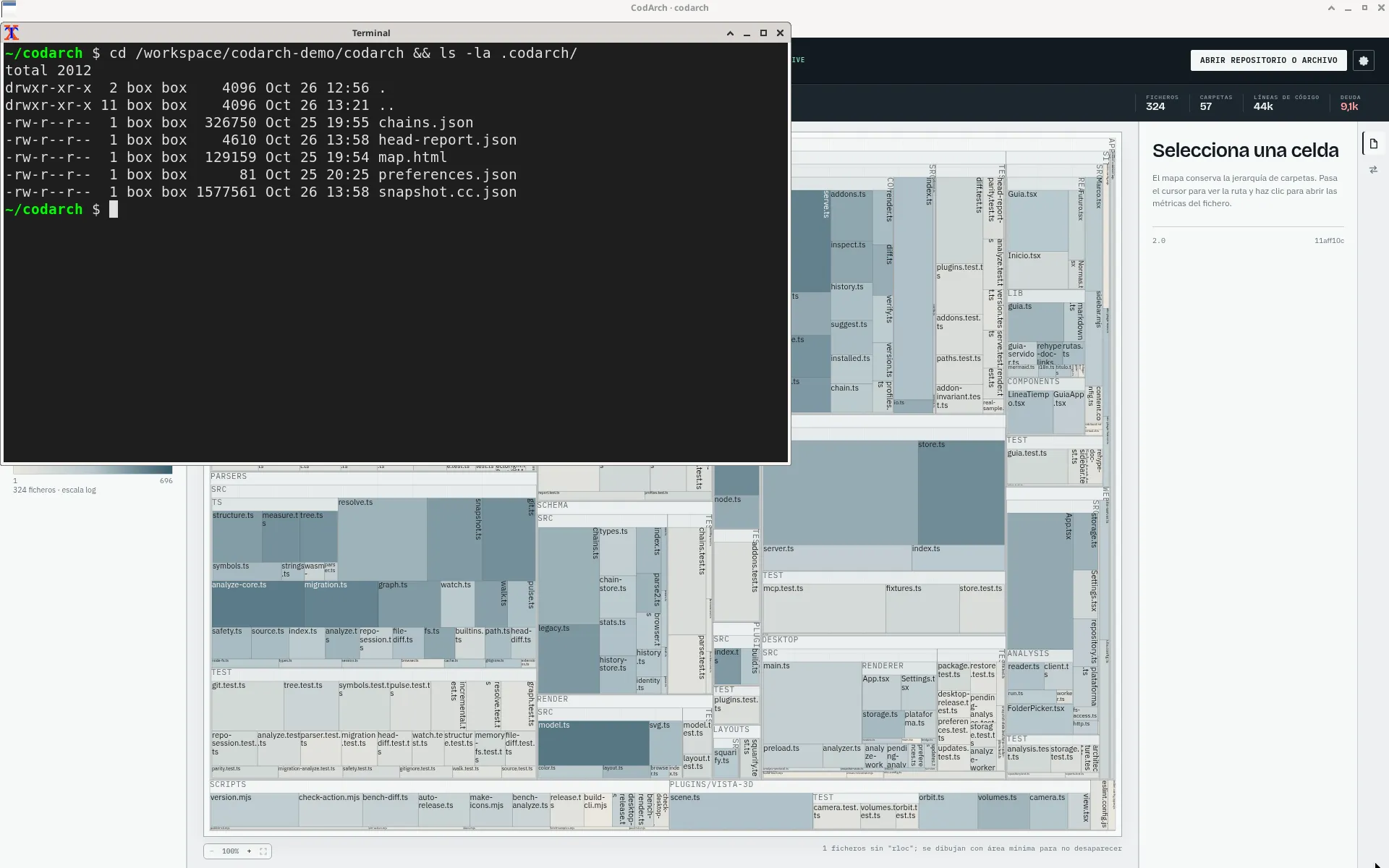
Section titled “The .codarch/ folder”The repo state is saved in its .codarch/ folder, not in the app. What CodArch writes there:
| File | What it is |
|---|---|
snapshot.cc.json | the latest snapshot |
rest.cc.json | the map of what is not code (documents, configuration and assets) |
head-report.json | what was touched since the last commit |
report.json | a diff report, only if one was loaded |
chains.json | the symbol chain ledger |
preferences.json | the view preferences |
parse-cache.json | the parse cache of the last pass |
lint.repmod.json | the measured lint, with the tree it measured |
lint-cache.json | lint rules already resolved, so they are not loaded again |
scopes.json | the .codarch/ folders seen below this root |
shots/ | the map captures, in their two slots |
That is everything CodArch writes there, and nothing else: the folder belongs to the product, not to
your own work. Anything else that shows up —a static map, a hand-made capture, a script— is a leftover,
and every analysis deletes it and names it in the console. Local state (preferences, caches, chains,
scopes and captures) is left alone even when that pass did not write it. History snapshots do not go here but in .codarch-history/, at the repo root.
Neither does a static map: codarch render copies the whole web app to the folder
you give it, with the snapshot in data/snapshot.cc.json.
Ajustes › General
Section titled “Ajustes › General”The first section of Ajustes picks the theme: Claro, Oscuro or El sistema (see Ajustes › General in the web app). In the desktop app the preference lives in the app, not in the repository.
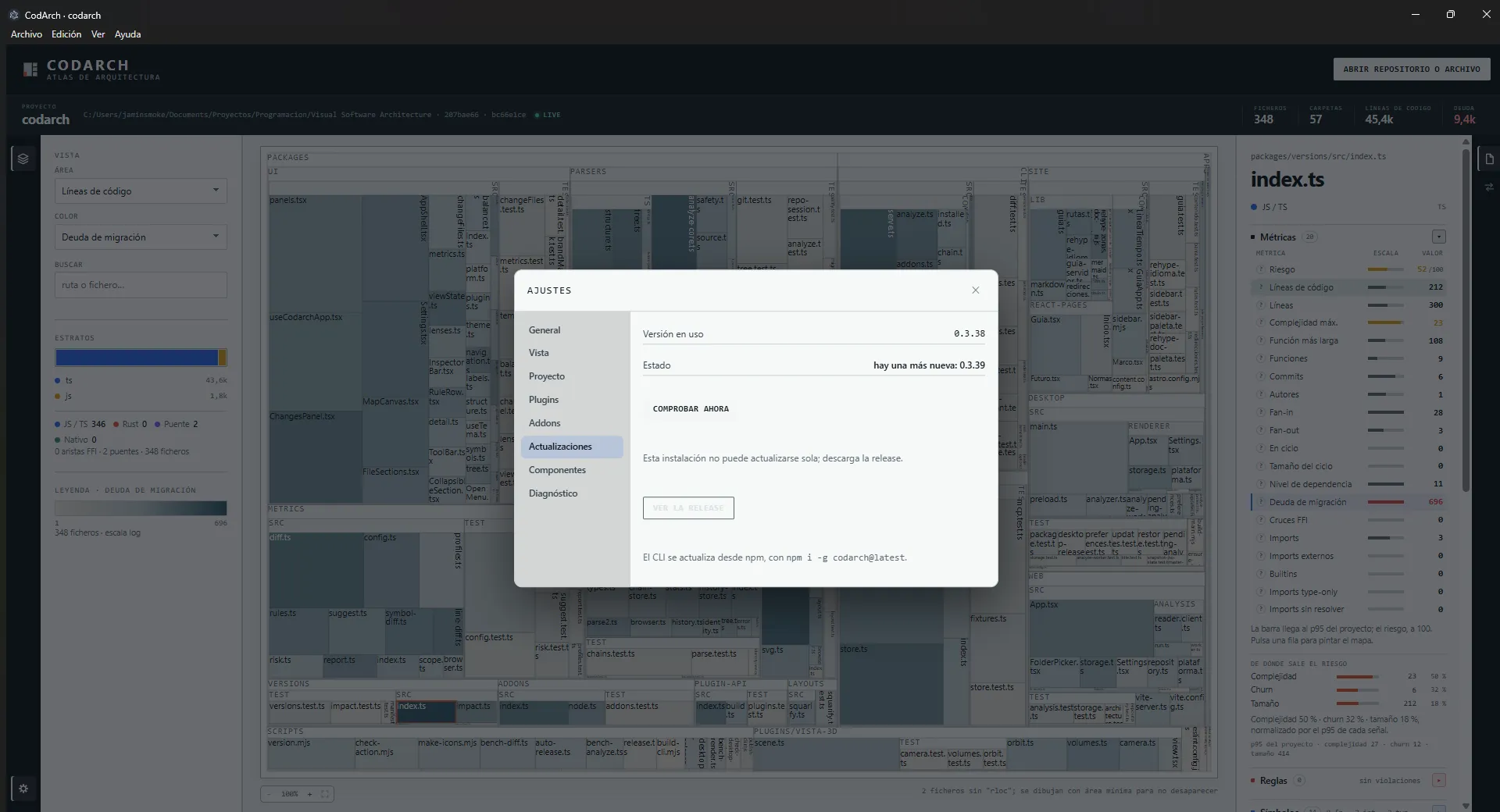
Ajustes › Actualizaciones
Section titled “Ajustes › Actualizaciones”Updates only show up in Ajustes › Actualizaciones (settings › updates): it shows the installed
version and whether it is up to date. There is no banner; when a new version exists, the notice
appears in that section. The AppImage updates without permissions; the .deb asks for the
administrator password, like any package. See Updates.